Toilet paper running low
Third-floor restroom · Additional stock requested by the cleaning team.
Recorded with the service visitCleaning completion remains visible
Turn a month of service into a clear account of what happened across your buildings. Bring visits, inspections, photos, and exceptions together—and give clients a report they can understand.
Choose the account and reporting period, select the records, then review the report before publishing.
✓ Harbor Point Office
✓ Civic Administration
✓ Utilities Office
Performance scorecard · 118 completed
Calendar view · September
Completed services · 3 buildings
Issues reported · 1 open request
Inspections completed · 3
Dates shown in the shared report. Internal coordination stays in the office.Interface recreation based on JanGuard’s app screens · Fictional sample data · Select the tabs to explore
Bring service visits, inspections, photos, and exceptions into one reporting period. Explore a sample month, narrow it to a building, and choose what your client sees.
116 on time · 2 late · 1 missed · 1 excused
Inspections: 3 completed · 1 finding flagged for follow-up.
Issues: 1 open supply request · linked to the September 22 visit.
 Illustrative photo, not evidence of this sample account.
A board gives people at the building a direct way to report what needs attention. Keep those issues alongside service activity so a completed visit and an open supply request can both remain visible.
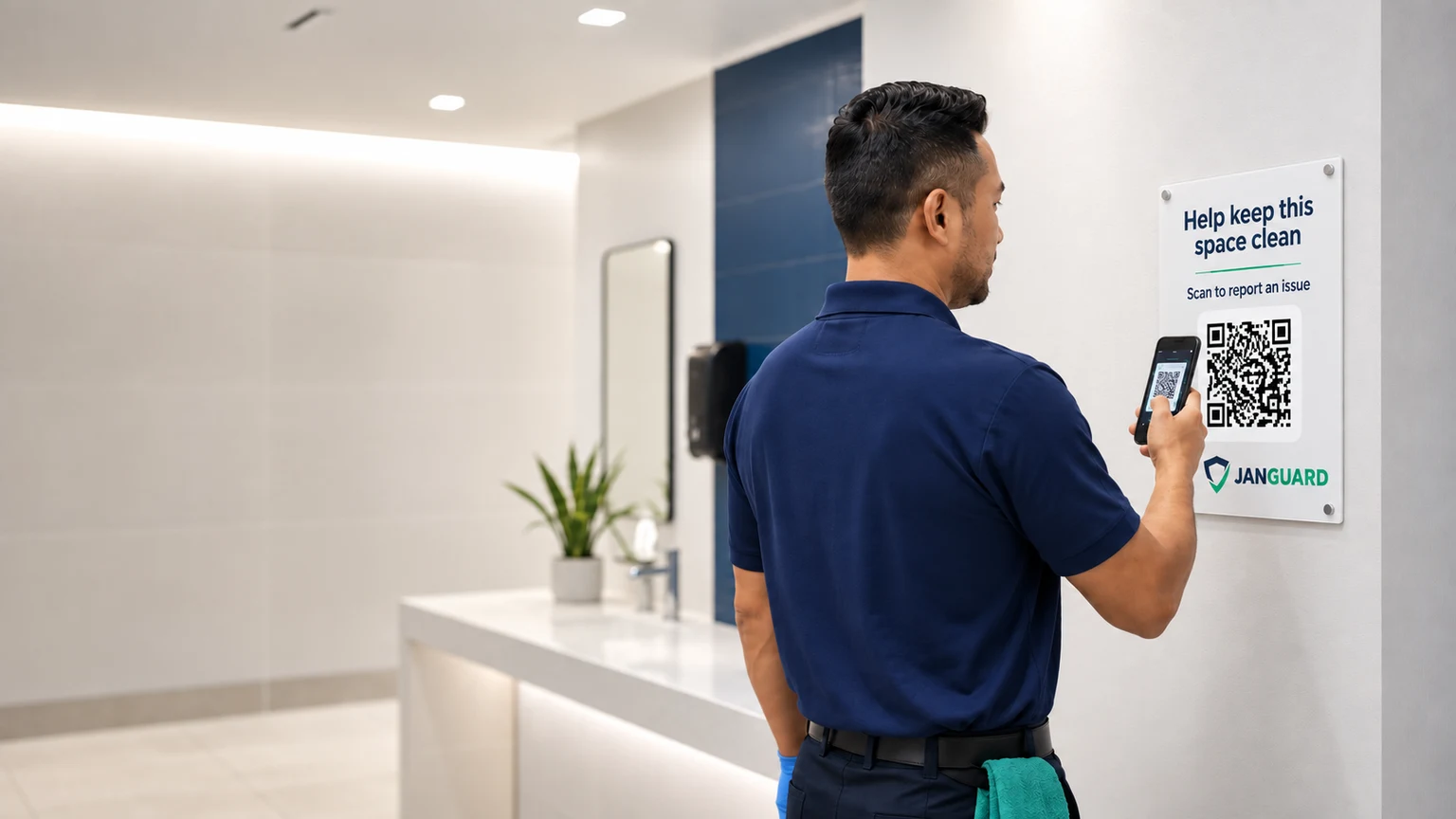
The board connects the report to the building or area.
Report a spill, missing supplies, or another issue from a phone.
Bring issues and service records into the report for the period.
Illustrative board placements. Use the sample links to explore the reporting experience.
Explore a fictional evening-cleaning visit. See the completed tasks, supporting evidence, and a supply issue that still needs attention.
Evening cleaning · September 22 · Sample record
Responses recorded for this sample visit.
A completion response records what was submitted. Review supporting details when further verification is needed.
Photos and visit notes help explain the work.
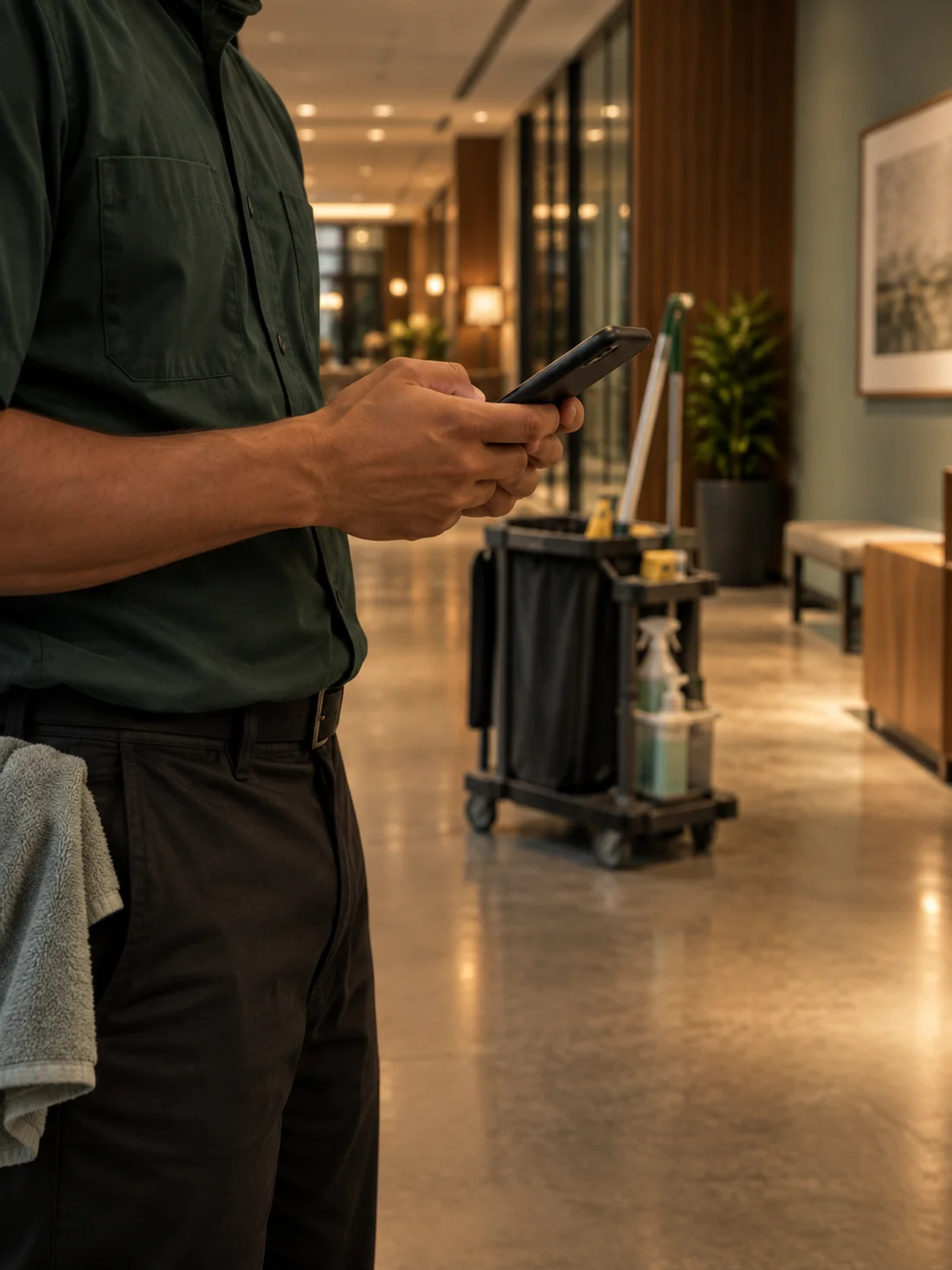
“Scheduled cleaning completed. Third-floor restroom needs additional toilet paper. Supply request included with this visit.”
Cleaners who sign in can attach photos to their scan reports. Location is recorded when the phone permits it.
See how QR reporting works →Keep an exception attached to the visit that surfaced it.
Third-floor restroom · Additional stock requested by the cleaning team.
This sample request is still open. Recording an issue does not mean it has been resolved.
A useful report gives the office something to review and the client something to reference. The work, the timing, and the exceptions belong together.
Connect service submissions to the building, area, and scheduled work. Keep the report close to the visit it describes.
Bring task responses, timestamps, issue details, and available photos together so your team can review the context.
Capture supply needs and reported issues alongside the work. A completed visit can still need follow-up.
Publish service reports to the client portal. Give property managers a record they can review, print, or save as a PDF.
A QR scan opens the location’s report. Complete the scope checklist, note issues, and record supply needs.
02 ↗See the service record against the scheduled visit, with the submission time and supporting details.
03 ↗Published service reports appear in the client portal, where property managers can review the work.

Property managers can see completed, missed, and upcoming visits for their buildings. Published reports can show on-time visits and before-and-after photos, with options to print or save as a PDF.
Explore client portals →Scan reports capture task responses or cleaning questions, issue details, supply needs, and submission time. Photos are available for cleaners who sign in, and location is recorded when the phone permits it.
JanGuard matches the submitted report to the scheduled visit so the schedule can reflect completion. The visit and its reported details stay connected.
Yes. A cleaner can record completed work and report a supply shortage or other issue during the same visit. Review those exceptions separately from completion.
Service reports your team publishes appear in the client portal. You control which portal sections clients can access.
Published reports can be printed or saved as a PDF. Service records in the portal can also be exported to CSV.