A code for each building or area
Print one code for a whole building, or separate codes for each restroom, floor, or suite. Each code opens the cleaning report for that spot.
Scanning a code opens that spot's cleaning report in the phone's browser, with no app and no login. Cleaners note the supplies a building needs, and you can order printed stickers or put landing pages behind the codes the public sees.
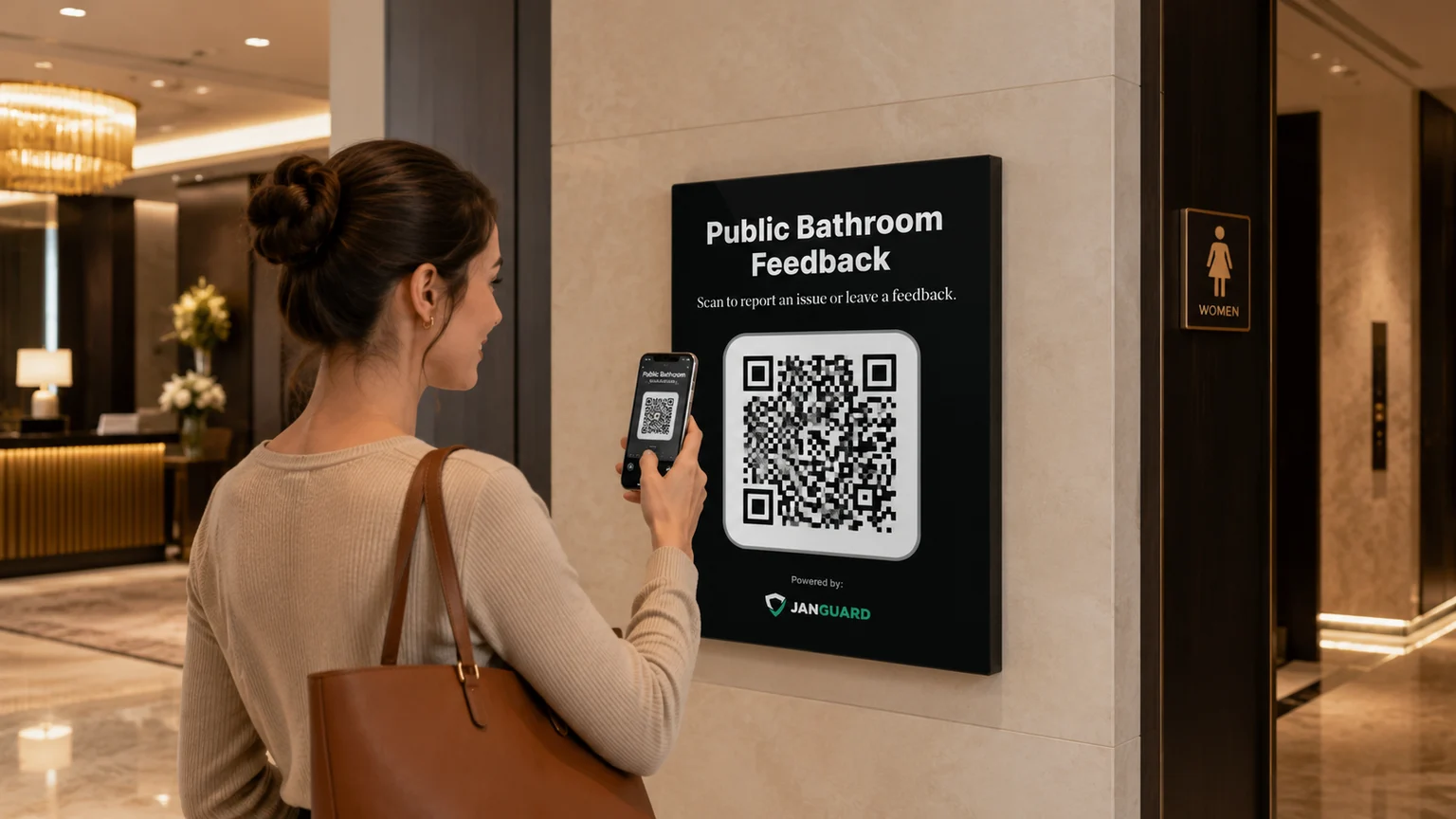
Separate placards for service teams and public reporting.
Viewing instructions does not mark the visit complete.
Harbor Point Offices · 3rd floor bathroom
Illustrative workflows · sample records only. No report is submitted. Public reporting is shown as a concept; access requirements depend on the configured workflow. Service-report photo attachments require sign-in.
Service boards put scope and reporting at the point of work. Public-feedback boards make it easy to flag a problem. Each starts with a location, a phone, and a scan.
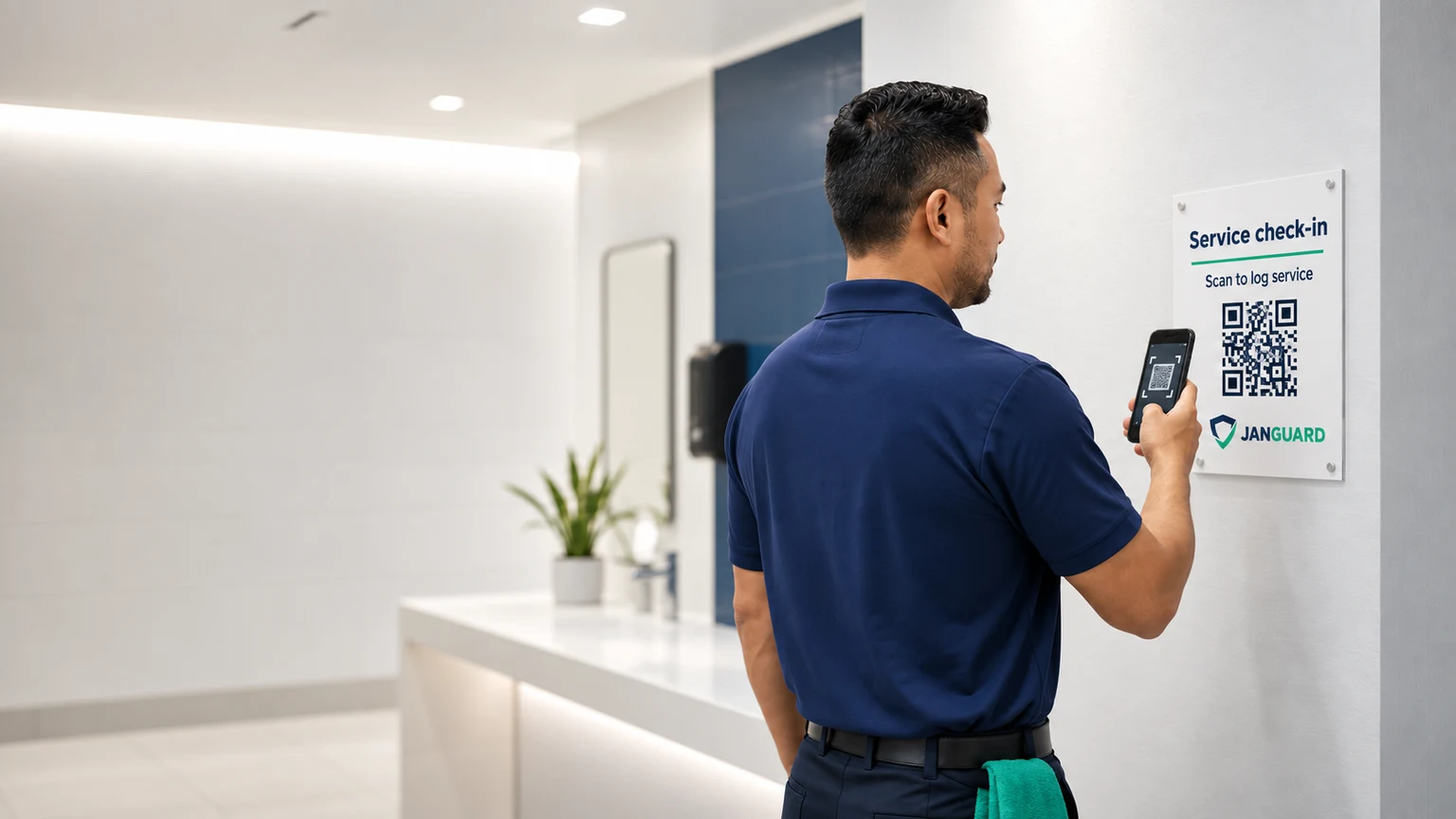
See the instructions for the building or area before starting.
Submit the work and connect the record to the scheduled visit.
Keep supply needs and exceptions visible for follow-up.
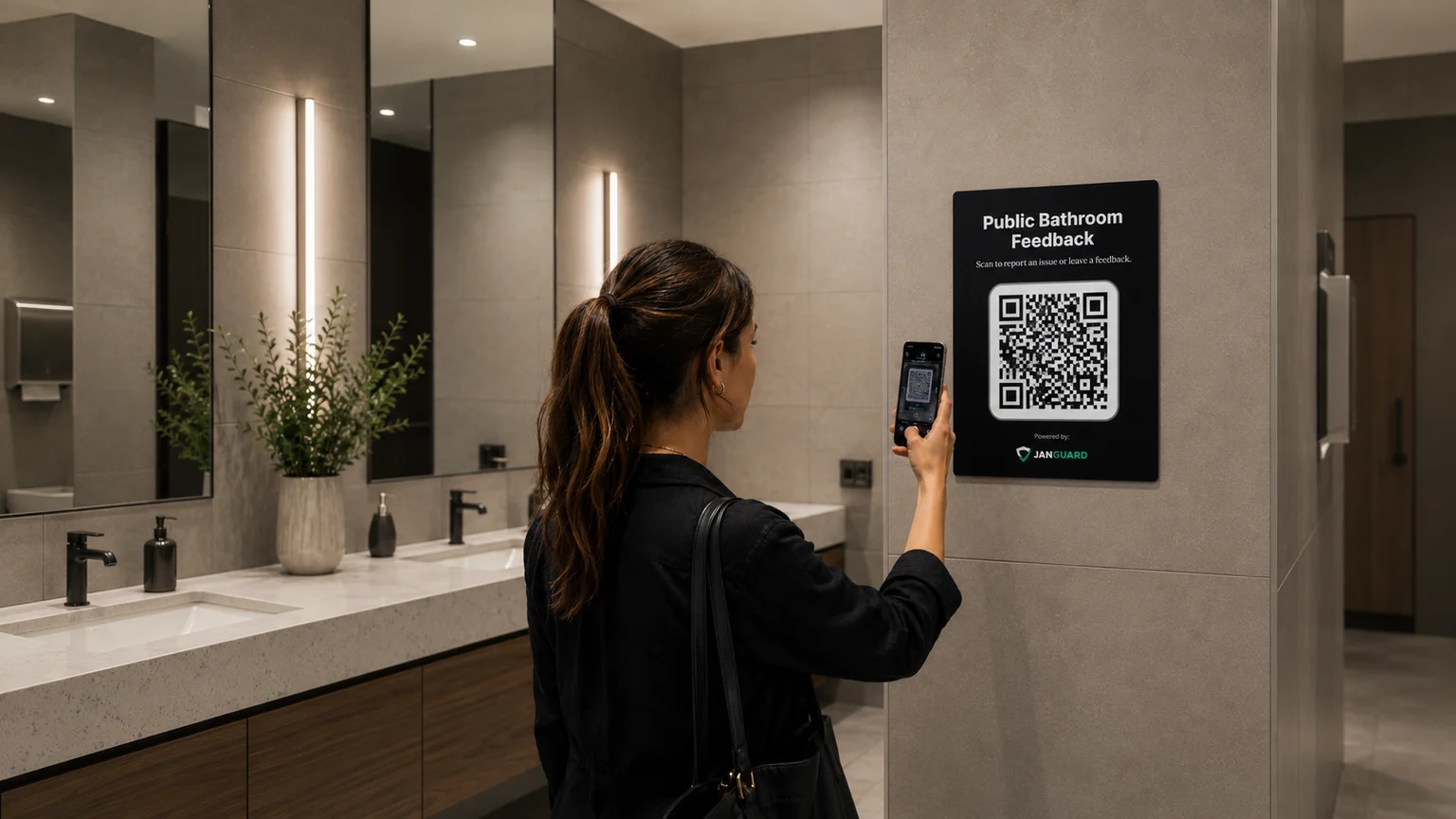
A visitor doesn’t need to find the facilities manager to flag a spill or an empty dispenser. The board opens a location-specific reporting path, so the team has the context to follow up.
Try the public reporting sampleIllustrative board placements. Use the sample links to explore the reporting experience.
Five design specimens. One simple idea: make the right report easy to find, right where the work happens.

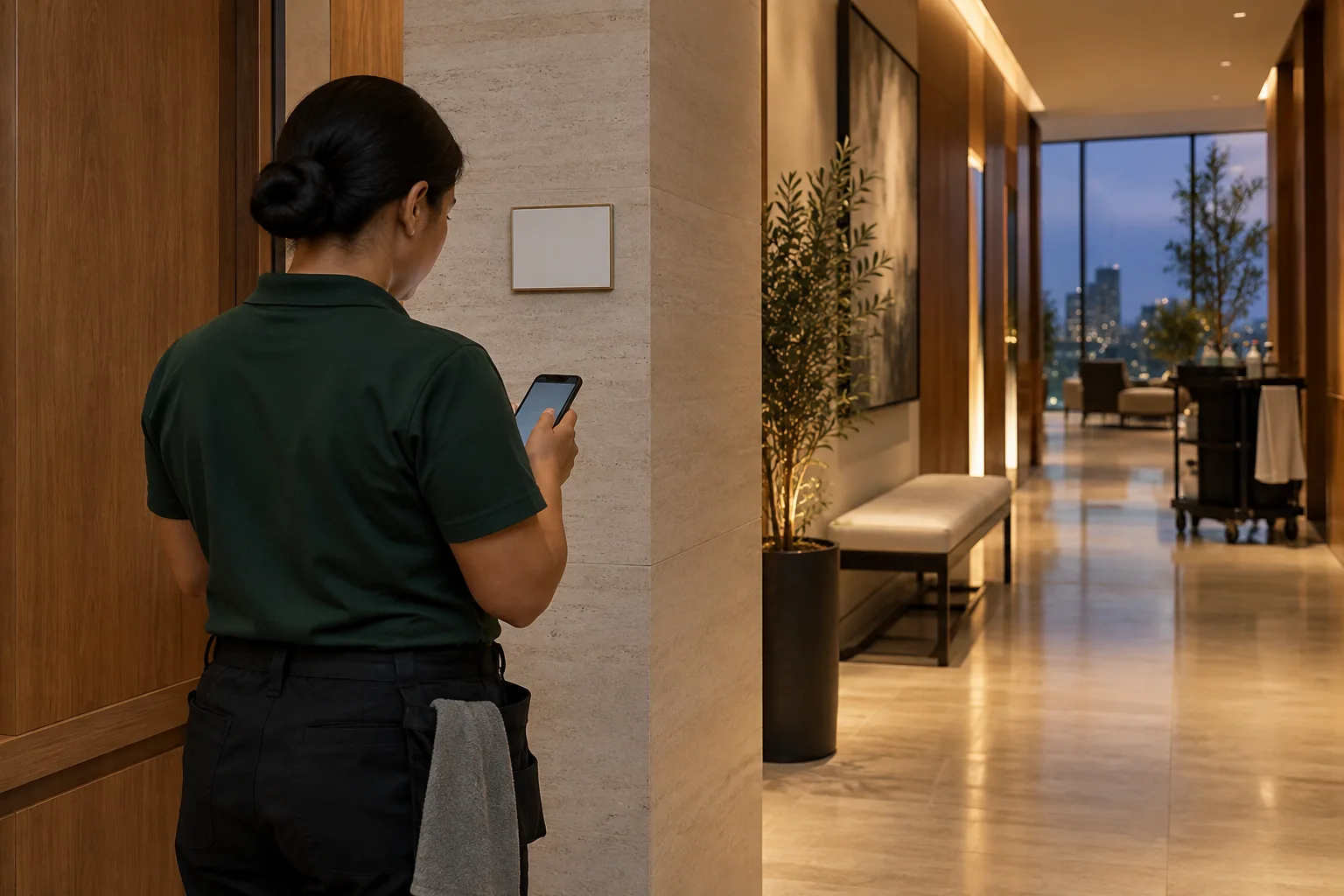
An unmistakable starting point for the evening visit.
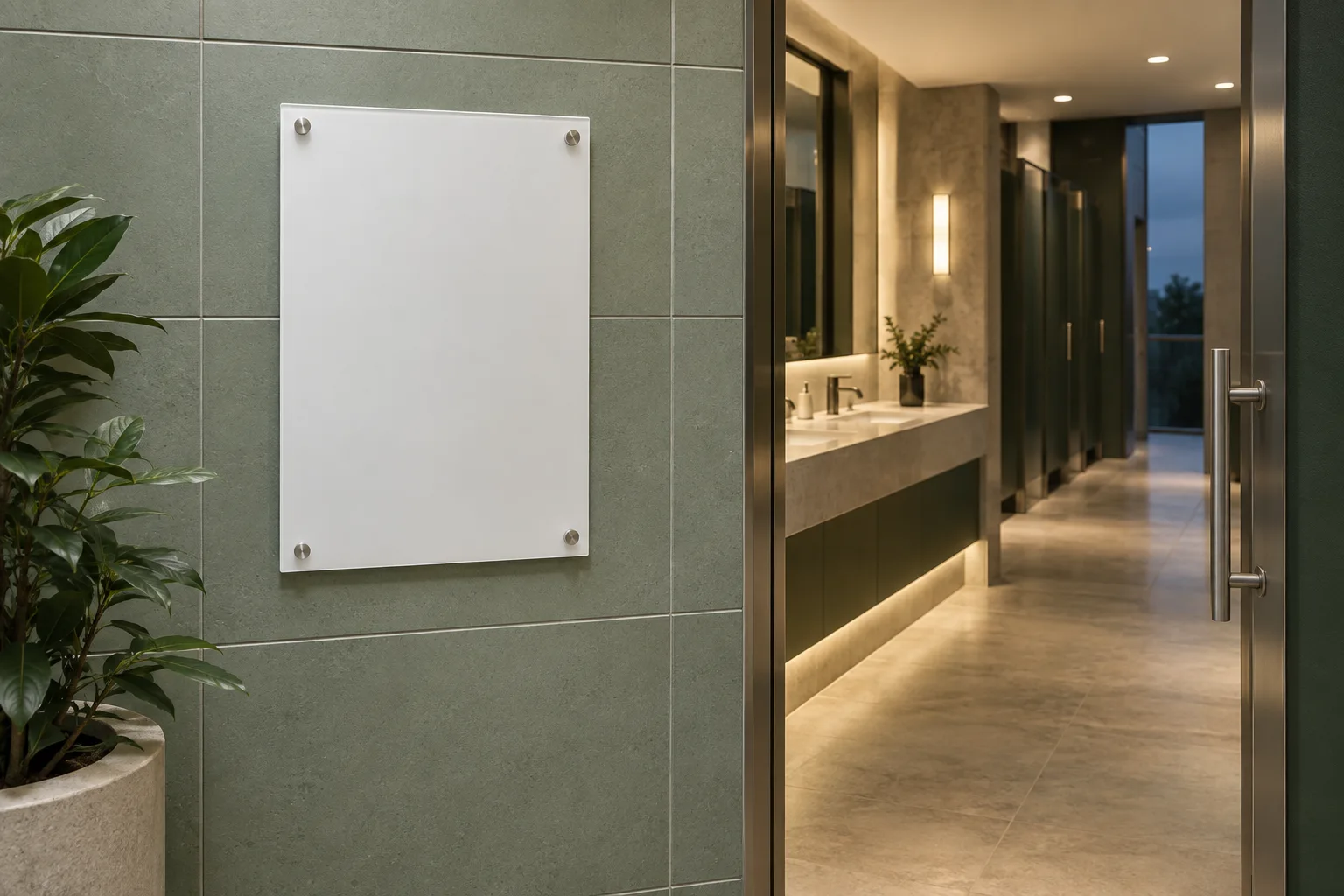

A location-specific record for the areas that need it.

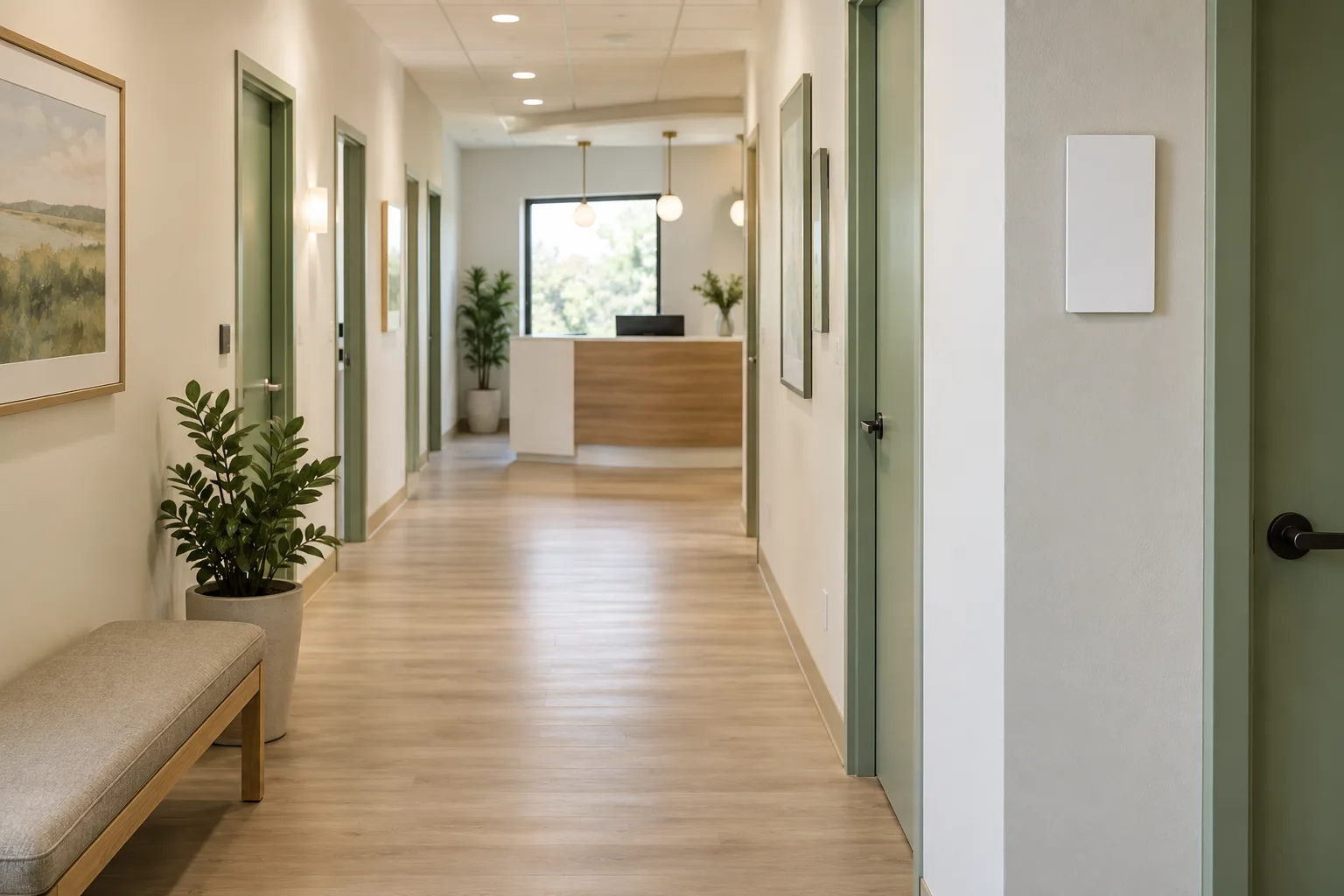
A smaller design specimen for an operational location.

An example identity treatment, not a claim about print-store options.
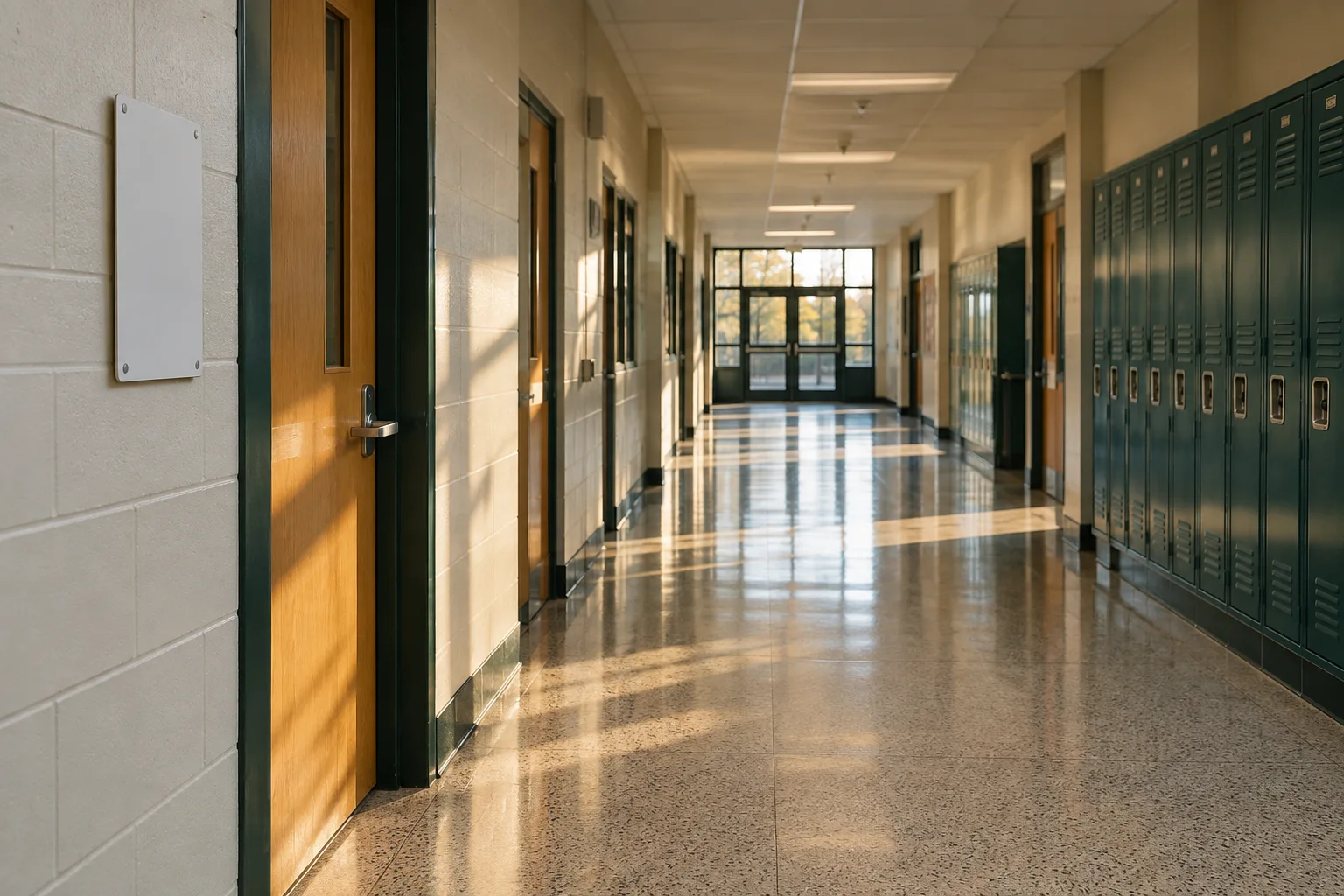

A separate public information use, distinct from crew reporting.
These sample QR codes contain a demo location label, not a live reporting URL. Use “Open sample” to try the workflow. Final operational codes are generated for your locations in JanGuard. Sizes and branding shown here are design concepts.
Complete an example visit at Harbor Point. Everything here stays in this page; no report is sent to JanGuard.
Floor 2 · Common areas
Tonight’s agreed tasks
Without a scope, a short question form replaces the task checklist.
Sample report. No login or location requested. In the app, attaching photos requires sign-in.
Try the form to turn the details on the left into an example service report.
This is an example confirmation. Nothing was sent or saved to a JanGuard account.
One location. One code. A record you can find.
Print one code for a whole building, or separate codes for each restroom, floor, or suite. Each code opens the cleaning report for that spot.
Scanning opens the report in the phone's browser, and cleaners can submit it without a JanGuard account. Cleaners who sign in can attach photos too.
Pick the buildings and areas, choose your stickers, and check out. A print partner prints each sticker with its own code and ships the order to the address you enter.
Export codes for many buildings and areas at once, as a PDF in 2x2, 3x3, or 4x4 grids or one per page, or as a ZIP of PNG files. Labels can show the client name or the area name.
Build a page with your logo, text, link buttons, a contact form, and a review link, or send the code straight to a website. Contact form messages land in your requests inbox.
Each landing page counts scans, unique visitors, page views, and form submissions, broken out by hour of day and by device.
If the schedule has a scope of work, the scan opens that visit's tasks as a checklist. If not, the report asks a few questions. Was it cleaned? Were there any issues? JanGuard saves the answers with the time and, when the phone allows it, the location. It matches the report to the scheduled visit, so the schedule shows that visit as completed.
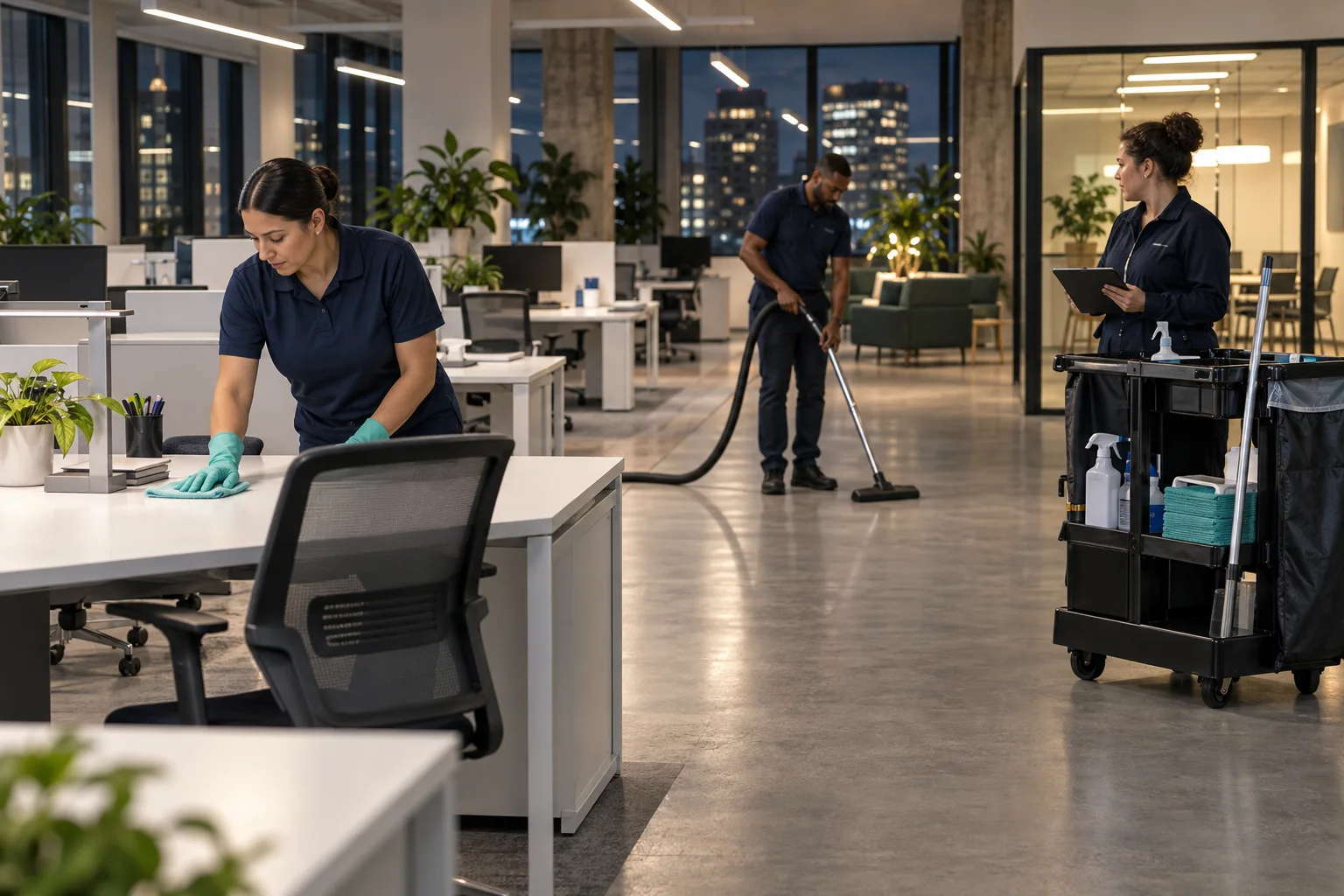
The scan report also asks whether the building or area needs supplies. On a building code, the cleaner can list what's running low, like paper towels or hand soap. The answer is saved with the visit, and the Completed Services list counts supply requests and marks each visit that has one.

No. Scanning a code opens the cleaning report in the phone's browser, and cleaners can submit it without a JanGuard login. Photos are the exception. A cleaner has to sign in to attach them.
Yes. Bulk export gives you a PDF of codes for the buildings and areas you choose, laid out in grids or one per page, or a ZIP of PNG images with a folder for each building. You can also order printed stickers from the QR store.
Yes. Landing page codes point to a short JanGuard link, not to the page itself. Edit the page, or switch it to send people to a different website, and the printed codes keep working.
On the visit itself and on the Completed Services list. The list counts the visits that asked for supplies and tags each one. Open a visit to read what the cleaner listed.
Set up your buildings and crews, print your QR codes, and watch the first reports come in. 30-day free trial.